Learn how to scan your music, connect a USB drive, find physical editions, sync with Discogs, and keep your collection organised. Practical instructions based on real Collexall features.
No matching guides. Try another search term, such as “USB”, “camera” or “Discogs”.
01 / Essentials
Getting started with Collexall
Collexall — Music Edition helps you catalogue physical CDs, vinyl records, music DVDs and Blu-rays on Android. Your main collection is stored locally. Internet access is needed for online identification, account synchronisation and live marketplace lookups.
Install the application and open Add Music.
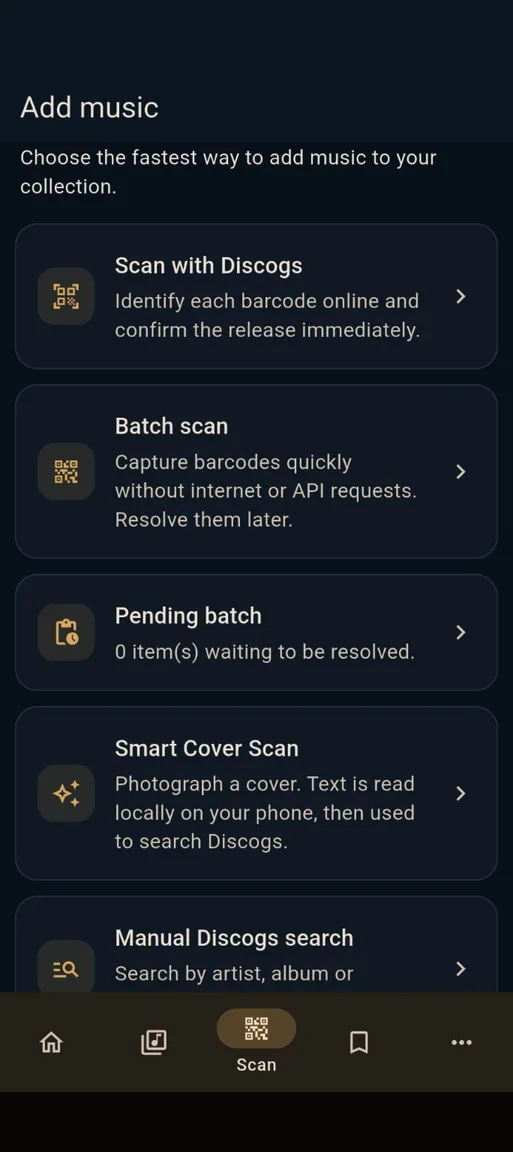
Select Scan with Discogs to identify a release by barcode, or use Manual Discogs Search for a release without a readable barcode.
Check the exact edition before saving it. The same album can have different years, labels, countries and catalogue numbers.
Add your own details: condition, purchase information, notes and physical shelf location.
Use Collection to search, filter and browse what you own.
Free trial: The demonstration is limited to 20 items, including unresolved batch scans. Full collection management requires unlocking the application. See the app's purchase screen for current availability and terms.
02 / Digital music
Analyse folders containing MP3 and FLAC files
Have years of digital music on your phone, SD card or an external drive? Digital Music builds a separate, local index of existing audio files. It helps you discover which digital albums also appear in your physical Collexall collection.
Phone, SD or USB folder→Scan metadata→Group albums→Compare physical library
Scan a music folder step by step
If the files are on a USB drive, connect it to your Android phone first. See the cable guide below.
Open More → Digital Music in Collexall.
Tap Choose music folder / drive. Android opens its own folder picker.
Choose the folder that contains your audio files and grant access. Collexall reads the selected folder and its subfolders; it does not need unrestricted access to your phone.
Wait for the scan to finish. The results show the number of tracks, albums and artists.
Search by artist or album, or select Only missing physically to see albums without a matching entry in your physical collection.
Tap Find physical release on an album to search Discogs with the artist and title already filled in. Check the edition before adding anything to your physical collection.
Supported indexed formats: MP3, FLAC, M4A, OGG, OPUS, WAV, APE, AIF, AIFF and AIFC. Collexall reads embedded tags when available, otherwise it falls back to file and folder names. If the contents change, use Rescan last source.
Important distinction: Digital Music indexes existing audio files; it does not rip an audio CD, play music, copy audio files or recognise a song from its sound. Matching digital and physical albums is based on artist and album names, not proof that you own the exact same pressing.
Suggested folder organisation
A consistent structure such as Music / Artist / Album / numbered tracks, along with accurate album and artist tags, makes the catalogue easier to interpret when some embedded metadata is missing.
What happens if I delete a digital album inside Collexall?
Only its entry in the separate digital index is removed. The audio files on your phone, SD card or external drive are not deleted.
03 / Hardware guide
USB cables: how to connect an external music drive
You do not need to copy a large music library onto your phone if Android can see your external storage. The key requirements are a compatible phone, the correct data-capable connector or adapter, and a drive that Android can mount.
Choose your connection
USB-C phone + USB-A drive
→USB-C OTG adapter→
Use a USB-C to USB-A OTG adapter or a suitable USB-C hub. Connect your existing USB-A flash drive or disk cable.
Common modern Android setup
USB-C phone + USB-C drive
→USB-C data cable→
A compatible USB-C flash drive or enclosure may connect directly with a data-capable USB-C cable, provided the phone supports USB host mode.
Check the drive and phone specifications
Micro-USB phone + USB-A drive
→Micro-USB OTG adapter→
Use a Micro-USB OTG adapter only if the older Android phone supports OTG/USB host mode.
Older Android phones
Connect and scan
Connect the USB drive to the phone using the compatible cable or OTG adapter. A large desktop or portable hard drive may need an externally powered USB hub or its own power supply.
Confirm that Android can access the drive first: open your file manager or Files by Google and look under connected storage. Grant access if prompted.
Open Collexall → More → Digital Music → Choose music folder / drive.
In the Android folder picker, browse to the USB storage device and select the music folder.
Let Collexall index the files. Keep the drive connected until scanning finishes.
Do not format your disk just because Android does not recognise it. First check OTG support, cable data capability, power requirements and the filesystem your device supports. Reformatting can destroy your music library.
A USB-connected external hard drive containing MP3 or FLAC files is not the same thing as an external CD/DVD reader. Collexall's Digital Music tool currently indexes existing files exposed through Android's folder picker; it does not extract audio from physical discs.
Collexall offers different camera workflows. Choose the one that suits the item in front of you — barcode scanning, offline batch scanning or Smart Cover Scan.
In Add Music, select the identification method that suits the release. Screenshot from an earlier build.
Option A · Scan a barcode
Open Add Music → Scan with Discogs.
Allow camera access when Android asks.
Place the CD or record barcode inside the camera view, using even light and avoiding glare.
Review the returned release candidates. Confirm the country, catalogue number and edition before saving.
Option B · Batch scan a shelf, even offline
Open Add Music → Batch Scan.
Set a physical location if desired. Point your camera at the first barcode and tap the capture button. Each accepted barcode requires a new tap.
Continue with your other albums. Their barcodes are saved to the pending queue without contacting Discogs during capture.
When connected to the Internet and your Discogs account, open Pending Batch and resolve the saved codes. Review editions that need confirmation.
Option C · Smart Cover Scan
Open Add Music → Smart Cover Scan.
Take a well-lit photo of the front cover, or select an existing photo.
The app reads cover text on your phone and may also show visual matches when that service is available.
Check or correct the recognised text, search Discogs and confirm the physical release.
Tip: A cover photo is not proof of an exact pressing. Confirm format, year, country, label and catalogue number, especially for rare or valuable releases. If the front cover has little text, try the spine or back cover.
05 / Connected collection
Connect Collexall to your Discogs account
Discogs is an optional online integration. You can keep using your locally stored collection without a permanent connection. Linking an account enables online identification, synchronisation and collection-based features.
Tap Connect. Your web browser opens the Discogs authorisation page.
Sign in to Discogs if needed. Review the permissions requested and authorise Collexall if you agree.
Return to the application. Collexall completes the connection and displays the linked Discogs username.
Review your collections, then tap Sync if you want to synchronise your account with your local collection.
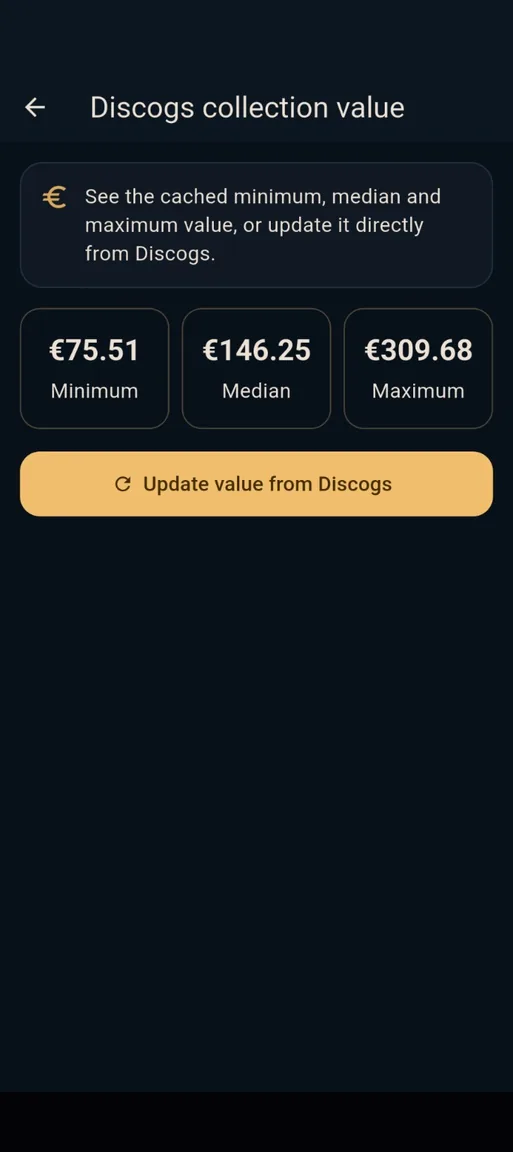
Discogs can also provide minimum, median and maximum collection price indications. Screenshot from an earlier build.
Important before the first two-way sync: Make a JSON backup of your local collection, check your Discogs collection and review any deletion confirmations carefully. Synchronisation can update information across both services. Discogs marketplace price indications are estimates or asking prices, not a guaranteed resale value.
Wantlist integration helps you see releases you are still looking for. You may disconnect the account within Collexall, and Discogs also provides application permissions under Account Settings → Applications.
Collexall uses the Discogs API but is not affiliated with, sponsored by or endorsed by Discogs.
06 / Beyond cataloguing
Organise, value and prepare music for sale
Turn your catalogue into a useful record of the physical copies you own, not just a list of album titles.
Organise the physical collection
Locations: add room, furniture and shelf details to find an item quickly.
Condition and notes: keep the media and sleeve condition, purchase information and your personal details.
Loans: record which items you lent and track their return.
Statistics: explore artists, decades, countries and formats represented in your collection.
Wishlist: list releases you would like to acquire, independently or via Discogs where connected.
Prepare sales without rebuilding your catalogue
Mark the copies you want to sell, individually or in bulk.
Record asking prices and the correct condition. Compare active eBay listings if relevant, remembering they show sellers' requested prices.
Export a shareable HTML sale catalogue with covers, or prepare destination-specific CSV drafts.
Review the completeness summary: missing prices, barcodes and condition grades remain blank rather than being invented.
Check each platform's required fields and import rules before publishing. Collexall prepares drafts; it does not automatically publish listings.
Current planned draft destinations in the site workflow include eBay, Discogs, Shopify, WooCommerce, PrestaShop, EIL and generic CSV.
07 / Ownership and portability
Back up and export your collection
Your music catalogue belongs to you. Collexall's master collection is stored locally, which makes having an independent backup particularly important.
JSON: use the application's backup/export controls for a complete local backup, and its restore function when needed.
CSV: export and edit collection data in a spreadsheet. Import edited CSV with a preview; stable IDs help update the intended physical copies.
HTML: generate a responsive catalogue of the music marked for sale, with cover images where available.
Marketplace CSV: prepare drafts for supported destinations and manually review mandatory fields before importing them elsewhere.
Open More and locate the import/export or backup tools.
Choose your export format and save location in the Android file picker.
Wait for the successful-save confirmation. Consider copying the backup to another device or trusted storage location.
Before making major edits or trying your first two-way Discogs synchronisation, create a fresh JSON backup.
Digital Music is separate: its index is metadata about files already stored elsewhere; exporting the physical collection does not transfer your original MP3 or FLAC files. Back up those audio files independently.
08 / Fix common problems
Troubleshooting
My USB drive is not visible
First check whether Android itself detects the disk in its file manager. Try a data-capable cable, the correct OTG adapter, a powered hub for demanding disks, and a compatible filesystem. Do not reformat without a verified backup. Collexall can only access locations exposed by the Android folder picker.
I scanned a folder but albums are misidentified
Inspect artist and album tags and try the Artist / Album folder structure. When tags cannot be read, Collexall uses filenames and folder names. The digital-to-physical comparison matches normalised artist and album names; it cannot confirm a specific pressing automatically.
The camera cannot read a barcode
Clean the case, avoid glare, improve lighting and keep the barcode inside the frame. For a damaged or missing code, use manual Discogs search or Smart Cover Scan.
Discogs will not connect or synchronise
Check Internet access, update Collexall, return to the app after approving the Discogs permissions, and verify your account is shown as connected. Discogs rate limits may delay resolving a large pending batch; keep the unresolved queue and try later. Do not repeatedly delete and reimport a collection to troubleshoot.
Why do eBay prices differ from a collection estimate?
Active eBay listings are asking prices, not confirmed sales. Different editions, countries, condition and shipping charges can make comparisons misleading.
Quick answers
Frequently asked questions
Do I need a separate barcode scanner?
No. Collexall uses the camera on your compatible Android phone for its barcode workflows.
Can Collexall index a hard drive without copying my MP3s?
Yes, provided Android recognises the drive and exposes its music folder to the folder picker. Collexall indexes metadata locally; it does not copy or delete the audio files.
Can I connect an external CD/DVD reader and rip my CDs?
Not through Digital Music. That feature scans existing audio files in a selected Android folder. It is not a CD-ripping tool.
Does the app work without Internet?
Your locally stored collection and offline batch barcode capture work without Internet. Discogs searches, account synchronisation and external marketplace checks require connectivity.
Can I undo an unwanted two-way Discogs change?
Do not rely on an automatic undo. Create a JSON backup before synchronising, and review any proposed remote deletions before confirming.
Official references
USB connections and folder picker: Files by Google Help · Android Developers. Discogs permissions: Discogs Support. App features described here follow the Collexall source code and official site. Device and platform compatibility can vary.
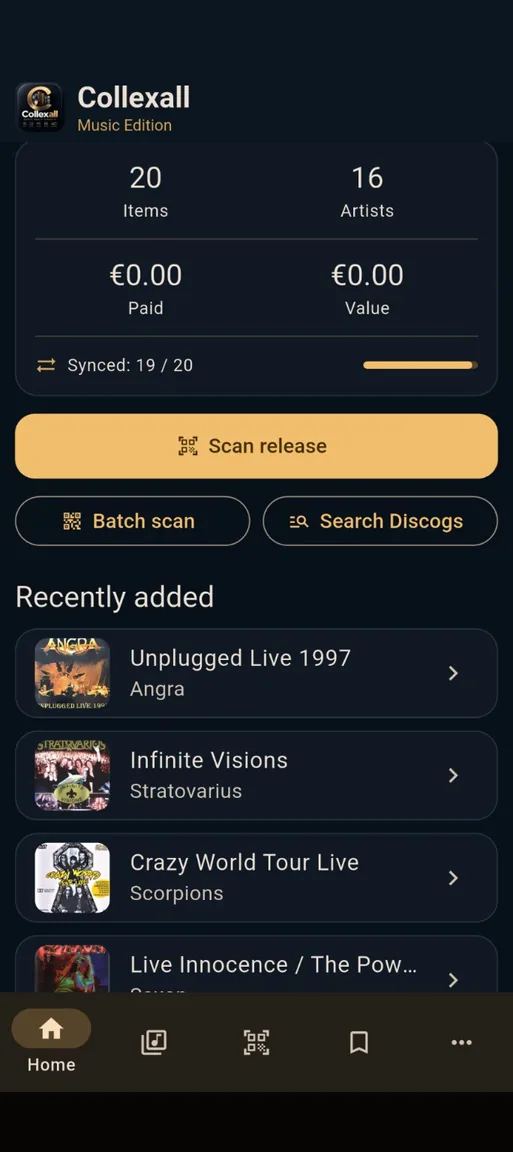 Real app screenshot from an earlier build